
Guide · Account6 min read
Pasting Your Gear and Bank from RuneLite
Your game account can hold what you wear and what is in your bank. Service pages then answer their gear questions for you, and the worker on your order knows what the account has. Both come from two free RuneLite plugins: you paste two lists of items, and nothing asks for your login.
Inventory Setups + Bank Memory + one paste each
Plugins
Inventory Setups, Bank Memory
Time
About two minutes
What you share
Item lists, never a login
1) The Two Plugins, and Their Look-Alikes
Each tab of the paste page reads one plugin’s copy. Search for these exact names in the Plugin Hub and check the author under the name.


Skip these. They have similar names but cannot make the copy the page reads:
- Inventory Setups Picker (akump): a hotkey search for setups you already have.
- GIMventory Setups (Robbejj): adds group storage to Inventory Setups. Not needed here.
- Wiki Gear Setups (Jiimbones): builds bank tag layouts from wiki gear lists.
- Bank Viewer and Bank Value Tracker: show your bank or its value, with no copy of the list.
2) Install Them from the Plugin Hub
- Start RuneLite, from runelite.net or from the Jagex Launcher.
- On the sidebar at the right, click the wrench: Configuration.
- The panel has three tabs at its top: Configuration, Profiles and Plugin Hub. Click Plugin Hub, the third one.
- Type Inventory Setups in its search box. Check that the name under it is dillydill123, then press the green Install.
- Do the same for Bank Memory, by LazyFaith.
- Installed plugins show a red Remove button instead, and their icons join the sidebar. Scroll the sidebar if you can’t see them.
3) Export What You Wear with Inventory Setups
- Log in and put on everything you would wear for the service, with the inventory you would bring. Your rune pouch, bolt pouch and quiver come along too.
- Click the grey armoured figure on the sidebar to open the panel.
- Click the green + at the top of the panel and choose Add new setup.. (not Add new section..).
- A box called Add New Setup asks for a name, up to 50 characters. Type one, such as “Peng raids”, and press OK. The setup appears at the bottom of the list, holding what you have on.
- On that setup’s row, the eye opens it and the button beside it, an arrow coming out of a tray, is Export setup. Left-click it.
- A box called Export Setup Succeeded says “Setup data was copied to clipboard.” Press OK: it is ready to paste.

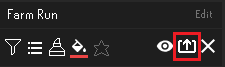
No buttons on the rows? The panel is in compact or icon mode. The view button at the top cycles through standard, compact and icon: press it until each setup has its own row again.
4) Copy Your Bank with Bank Memory
- Log in on a normal world. Leagues and Deadman banks are kept apart from your main one.
- Open your bank at any booth or chest, entering your bank PIN if asked. Bank Memory reads it as it opens, so you can close it again.
- Click the pink coin on the sidebar. The panel opens on Current bank: your items, their Grand Exchange and High Alchemy value, and Data from: with the time it last read your bank.
- Right-click anywhere on the list of items and choose Copy item data to clipboard. Nothing pops up: the whole list is now on your clipboard.
- The copy starts with the line “Item id, Item name, Item quantity”, then one line per item. Placeholders are skipped when the page reads it.
5) Paste It on Your Game Account
- Sign in, open Game account in your account menu and press Add gear and bank (Update gear and bank once you have saved one). Or go straight to Update gear and bank.
- Pick What you wear for the setup or Your bank for the bank. Paste into the other tab by mistake and the page switches for you.
- Paste with Ctrl+V (Cmd+V on a Mac) and press Check it. Nothing is saved yet.
- Gear shows on the equipment screen with the setup’s name and how much is worn and carried: press Save gear. A bank shows how many items were read and, after an earlier save, what is new and what is gone: press Save bank.
- No game account yet? The page asks for your name in game and account type first.
6) Keep It Up to Date
- Bank Memory updates Current bank every time you open your bank. After a big drop or purchase, copy it again and save.
- A setup keeps what you wore when you made it. New gear: make a fresh setup with +, then export that one.
- Each save replaces the one before it. Saving gear leaves your bank alone, and saving the bank leaves your gear alone.
What the Page’s Messages Mean
- That is not an Inventory Setups export. The text is something else. Press export on the setup’s row and paste again.
- That is several setups. This came from Mass Export Setups. Export just one, with the export button on its own row.
- That is a section, which lists setup names only. Export the setup itself, not the section it is in.
- That export is cut short. Part of it is missing. Export again and paste all of it into an empty box.
- That setup is empty. It was made with nothing on. Gear up and make a new one with +.
- That is not a Bank Memory copy. It must start with the Item id line. Use Copy item data to clipboard.
- Some lines are not in the Bank Memory format. The copy was edited or cut. Copy again and paste the whole thing.
- No items were found under the header. Bank Memory had not read your bank. Open it in game, then copy again.
Is It Safe?
- Both plugins come from RuneLite’s own Plugin Hub and are used by tens of thousands of players.
- What you paste holds item numbers, names and amounts, plus the setup’s name. There is no password, bank PIN or login in it.
- You and staff see the saved gear and bank. The worker on an order sees only what that order was priced from.